AI-Powered Form Extraction

Extract Data from
Scanned Forms
with Vision AI

Transform paper and scanned forms into structured data automatically. Upload, analyze, and export to Excel in minutes - no manual data entry required.

No signup required
Works in browser
Free to use
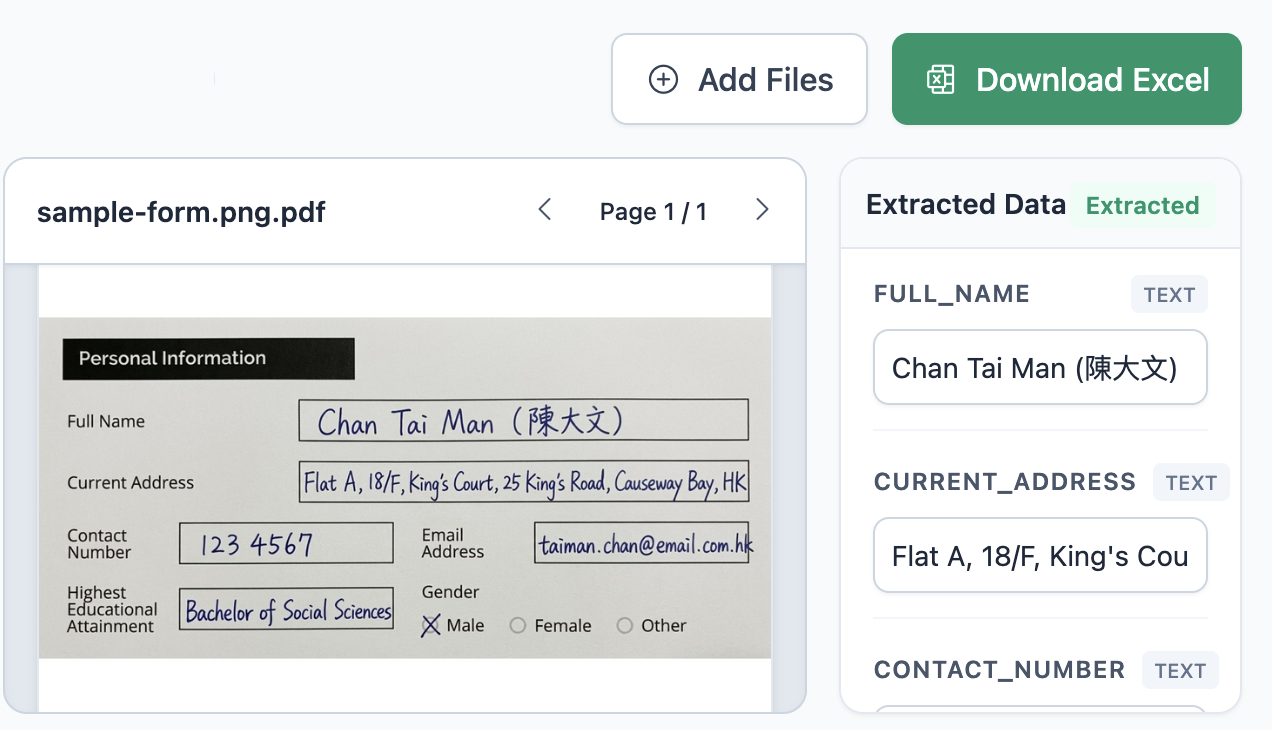
AI FormFlow Application Screenshot
AI Processing
AI Accuracy

How It Works

Three simple steps to extract data from your PDF forms using your preferred Vision AI model.

Step 1

Upload Your PDF

Upload any PDF form. The AI automatically detects the structure and identifies all fillable fields across multiple pages.

Step 2

AI Analyzes Structure

Review the detected schema. Customize field types, labels, and extraction prompts for perfect accuracy.

Step 3

Export to Excel

Process multiple documents in batch, review extracted data, and export everything to a clean Excel file.

Powerful Features for
Form Processing

Vision AI Technology

Choose your preferred vision language model (Together AI, OpenRouter, etc.) to extract data from form images.

Multi-Page Support

Handles complex multi-page forms with different schemas per page.

Batch Processing

Upload and process hundreds of documents at once with automatic queue management.

Multi-Language Support

Automatically detects form language and extracts data in the same language.

Supported Field Types

4 Types
Text Free-form input
Checkbox True/False values
Select Single choice from options
Multiple Multiple choices from options

All text-based fields (numbers, dates, currency) are extracted as Text type

Behind the Scenes

How It Actually Works

AI FormFlow uses a sophisticated prompt-based approach to understand your forms. Here's the technical workflow that powers the extraction process.

Complete Workflow

1. Upload PDF

User uploads form

2. AI Discovery

Vision AI analyzes image

3. Schema + Prompts

Generated automatically

4. Extract Data

AI extracts field values

5. Export

Download as Excel

Phase 1

Discovery

PDF → Images

Each page converted to high-quality image

AI Analysis

Vision LLM receives system prompt + user instructions

"Analyze this form and identify all fields..."

Schema Output

Returns structured schema with field definitions

Phase 2

Configuration

Review Schema

Edit detected field names, types, and options

Customize Prompts

Refine extraction instructions per page

"Extract full name from the first field..."

Save Config

Export schema for reuse across similar forms

Phase 3

Processing

Batch Upload

Upload multiple PDFs using saved schema

AI Extraction

Schema + prompts guide data extraction

Page image + Schema → JSON output

Review & Export

Verify extracted data, export to Excel

Technical Architecture

Prompt-Based AI

Unlike traditional OCR, FormFlow uses large language models with vision capabilities. Instead of training on specific forms, it uses prompts and instructions to understand any form layout dynamically.

  • System prompts define extraction behavior
  • User prompts customize per-page instructions
  • Schema acts as structured output format

Provider Flexibility

Works with any OpenAI-compatible API endpoint. You choose the AI provider and model based on your needs, budget, and data privacy requirements.

  • Together AI (default)
  • OpenRouter (multi-model access)
  • Local LLM servers (LM Studio, etc.)
See It In Action

Live Example

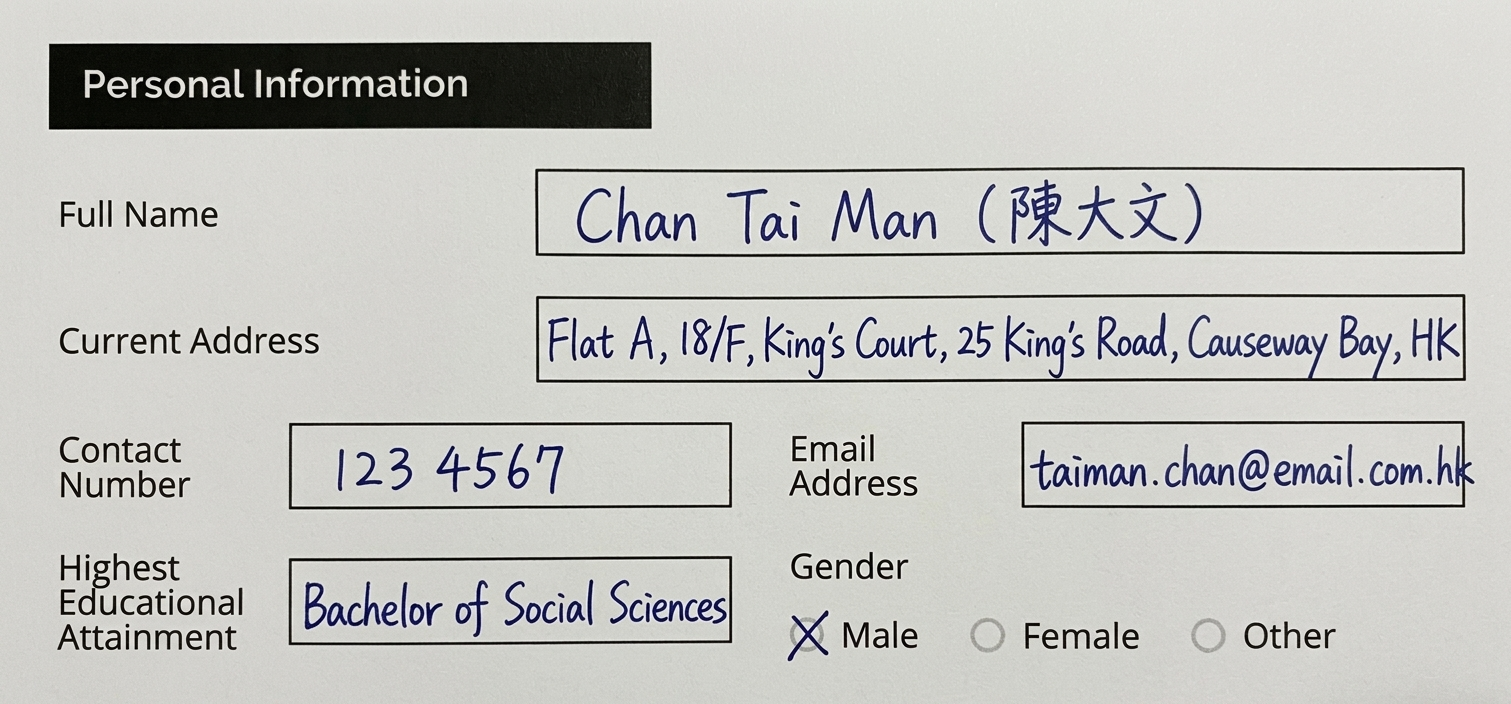
Here's a real example showing how AI FormFlow processes a sample form.

1

Input Form

Sample Personal Information Form

Sample personal information form uploaded by user

What Happens Next?

The AI analyzes the form image and identifies all fillable fields, checkboxes, and data points automatically.

2

Discovery Phase

How Discovery Works

The AI uses two prompts to analyze your form: a System Prompt defines the AI's role and output format, while a User Prompt provides specific instructions. The system prompt tells the AI to act as a data engineer and return results in the detected language. The user prompt guides what fields to look for.

System Prompt
Pre-configured

Defines AI's role and expected output structure

You are an expert Data Engineer. Analyze this form image and identify all logical fillable fields.

LANGUAGE DETECTION: Detect the primary language used in the form and respond in THAT SAME LANGUAGE.

Return a JSON object with exactly this structure:
{
  "description": "Brief description of page content",
  "schema": [
    {
      "key": "field_name",
      "type": "text|boolean|select",
      "remark": "Detailed extraction instruction",
      "options": ["option1", "option2"]
    }
  ],
  "prompt": "Extraction instructions"
}
User Prompt
Customizable

Specific instructions guiding field extraction

Analyze this personal information form and extract all relevant fields.

Important:
- Use underscores in field keys (e.g., full_name)
- DO NOT use "select" for checkbox fields
- Detect the language and respond in that language
3

Generated Schema

What is a Schema?

The AI analyzes your form and returns a schema — a structured definition of all fields. Each field has a key (identifier), type (text/boolean/select), and remark (instructions for extraction). This schema acts as a blueprint for processing future forms.

AI Output - Schema Definition
Auto-generated
{
  "description": "Personal information form with contact details",
  "schema": [
    {
      "key": "full_name",
      "type": "text",
      "remark": "Full name from the first text field"
    },
    {
      "key": "current_address",
      "type": "text", 
      "remark": "Complete current address"
    },
    {
      "key": "contact_number",
      "type": "text",
      "remark": "Phone or mobile number"
    },
    {
      "key": "email_address",
      "type": "text",
      "remark": "Email address in valid format"
    },
    {
      "key": "highest_educational_attainment",
      "type": "text",
      "remark": "Highest education level completed"
    },
    {
      "key": "gender",
      "type": "text",
      "remark": "Selected gender option (Male/Female/Other)"
    }
  ],
  "prompt": "Extract personal information following the schema strictly"
}
4

Data Extraction

How Extraction Works

With the schema as a blueprint, the AI processes each filled form image. It uses the field definitions and extraction prompts to identify and extract data. The result is structured JSON data ready for export — no manual data entry needed.

Input to AI

Form Image
Personal information form rendered as image
Schema + Prompts
Field definitions and extraction rules

AI Output

{
  "full_name": "Chan Tai Man (陳大文)",
  "current_address": "Flat A, 18/F, King's Court, 25 King's Road, Causeway Bay, HK",
  "contact_number": "123 4567",
  "email_address": "taiman.chan@email.com.hk",
  "highest_educational_attainment": "Bachelor of Social Sciences",
  "gender": "Male"
}
Structured JSON ready for export
5

Batch Export to Excel

Why Batch Processing?

Process hundreds of forms at once using the same schema. Each form becomes a row in the Excel file, with columns matching your field definitions. Review and edit extracted data before final export.

Input: Batch of Forms

Form 1
1
Form 2
2
Form 3
3
Total Forms 3 PDFs
Processing Status Completed

Output: Excel Spreadsheet

batch_personal_info.xlsx
3 rows
# Full Name Address Contact Email Education Gender
1 Chan Tai Man Flat A, 18/F... 123 4567 taiman.chan@... Bachelor of... Male
2 Lee Siu Ming Flat B, 12/F... 987 6543 siuming.lee@... Master of... Female
3 Wong Ka Yan Flat C, 5/F... 555 8888 kayan.wong@... Bachelor of... Female
6 columns
3 data rows
.xlsx format

Ready to Automate Form Processing?

Start extracting data from your PDF forms today. No installation, no signup - just upload and go.

Launch AI FormFlow

Works best with Chrome, Edge, or Firefox • API key required for AI processing